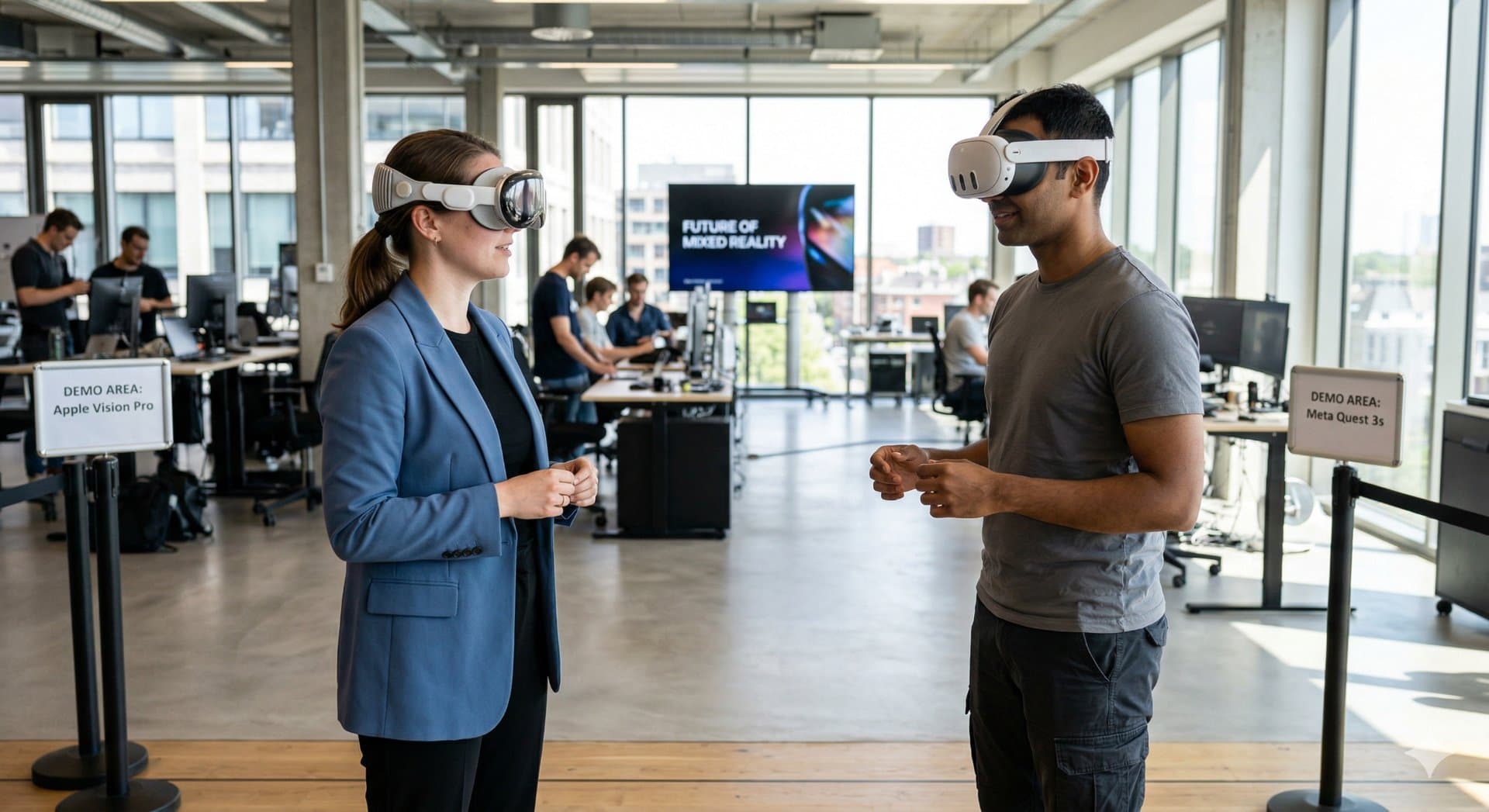
If you have looked at 3D video before, you have run into two names: full side-by-side and MV-HEVC. Here is the difference, without the codec talk.
Full side-by-side
The picture is split down the middle. The left half is what your left eye sees, the right half is what your right eye sees. A headset shows each half to the matching eye, and your brain turns the pair into depth.
Good: almost every headset and 3D player understands it, including Meta Quest. It is easy to check: open it on a normal screen and you literally see the two halves.
Less good: the file is big, because both views are stored in full.
MV-HEVC (spatial video)
Instead of storing two complete pictures, MV-HEVC stores one view plus only the differences needed to rebuild the second one. The two eyes see almost the same thing, so there is a lot of repetition to leave out.
Good: much smaller files at the same quality, and Apple Vision Pro plays it natively. This is what Apple calls spatial video.
Less good: support is limited to Apple devices for now. Meta Quest cannot play it.
Side by side
| Full side-by-side | MV-HEVC | |
|---|---|---|
| Meta Quest | Yes | No |
| Apple Vision Pro | Yes | Yes, natively |
| File size | Large | Around half |
| Picture quality | High | High |
| Best for | Most headsets | Apple Vision Pro |
So which one do you need?
The honest answer is that you do not have to choose. We make both versions of every video you convert, on every bundle, up to 8K. Open your library on a Quest and you get side-by-side. Open it on a Vision Pro and you get the spatial version. You never pick a format from a dropdown.
If you download a file to keep, then the rule is simple: side-by-side for Quest, spatial for Vision Pro.
See the difference yourself
Convert the first 2 minutes of your own video free and watch it in your headset.